Output and Network
The presenter's screen
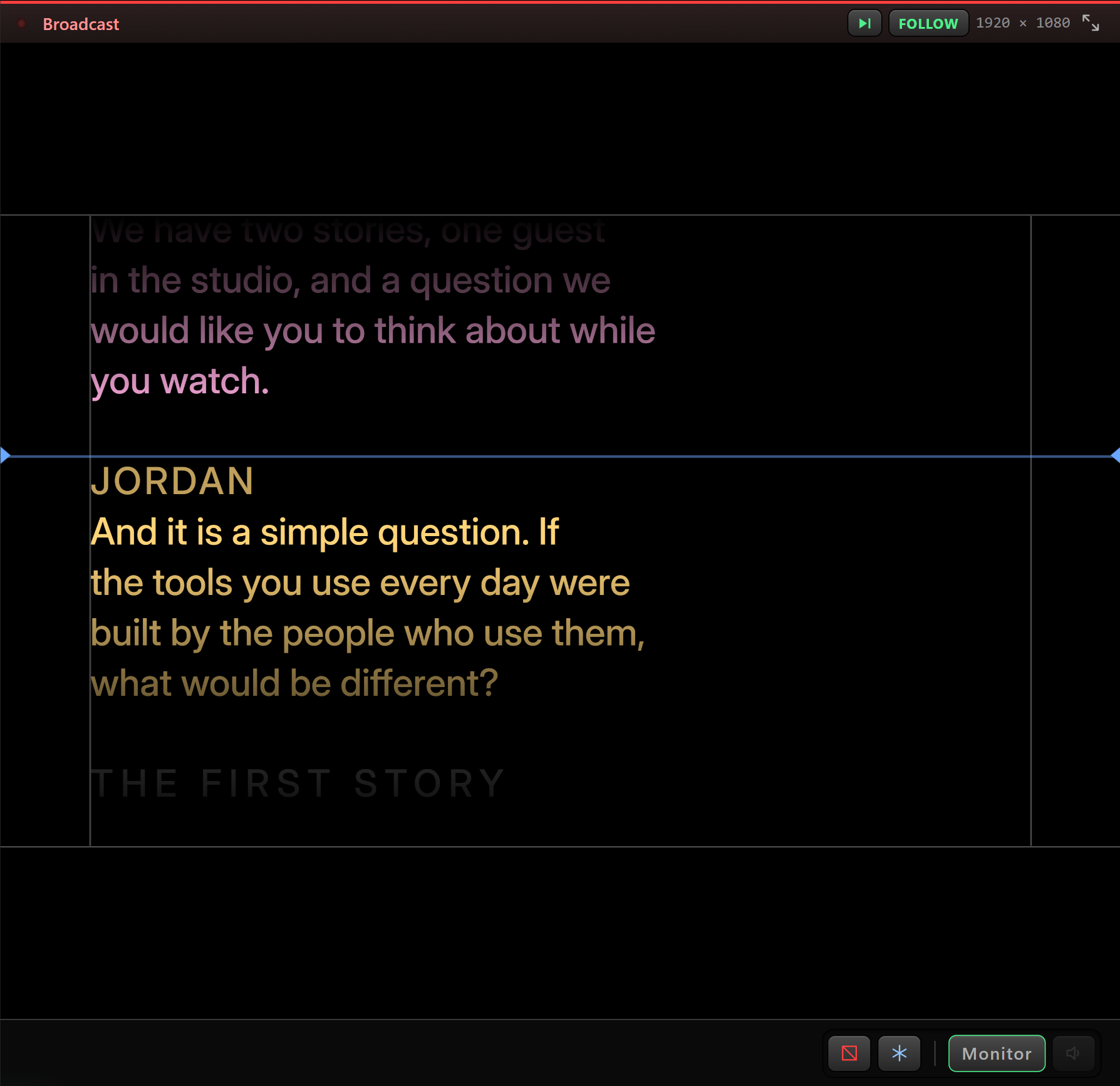
Pick a monitor in Choose monitor and press Broadcast. The screen goes full screen on that monitor, with no menu bar and no cursor.
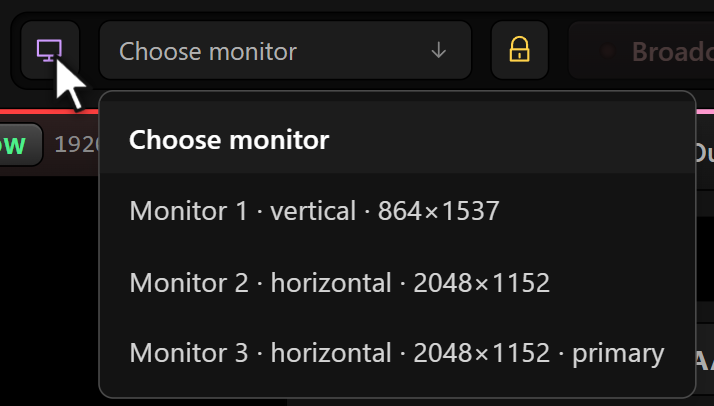
Identify flashes a big number on every connected screen, so you know which one the app calls Monitorundefinedbefore you send a show to it. If a monitor is unplugged mid-show, Valendo closes the output rather than leaving a window where a screen used to be.
Mirror and rotation
Teleprompter glass reflects, so the text has to be mirrored to read correctly through it. Both axes are available, plus 90° steps of rotation for a screen mounted sideways.
| Shortcut | |
|---|---|
Ctrl+Alt+M | Mirror |
Ctrl+Alt+R | Rotate |
Ctrl+Enter | Broadcast on/off |
Blackout and freeze
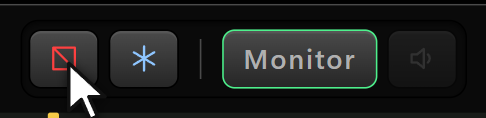
| Shortcut | What the presenter sees | |
|---|---|---|
Ctrl+B | Blackout | Black. Nothing else. The key turns red. |
Ctrl+Shift+F | Freeze | The current frame, held. The key turns blue. |
Blackout is for "we are off air"; freeze is for "hold that thought" — the scroll keeps running underneath and catches up when you release it.
The local network page
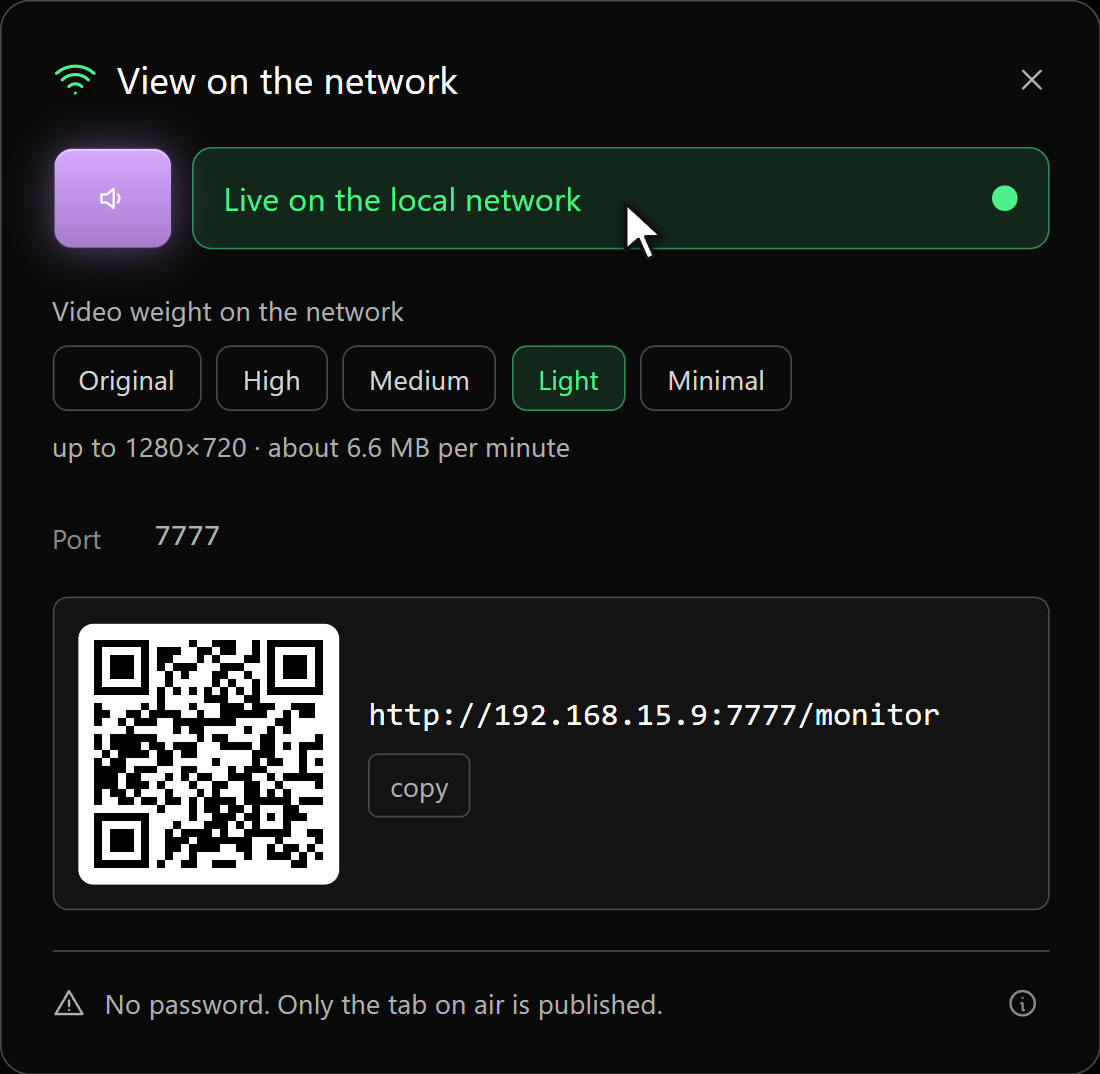
One switch publishes the reading to a page on the local network. Anyone on the same wi-fi opens the address — or points a camera at the QR code — and follows the same scroll, with the same cards and the same presenter colors, exactly as the presenter sees it. Nothing to install: a phone, a tablet, a spare laptop, any screen with a browser.
Video weight

Video going out to the network can be throttled, because a device on wi-fi is not a monitor on a cable:
| Profile | Roughly |
|---|---|
| Original | The file as it is |
| High | 1920×1080 |
| Medium | 1600×900 |
| Light | 1280×720, about 6.6 MB per minute |
| Minimal | The smallest that still reads |
The presenter's screen always gets the original. The profile only affects the network page.
What is published, and the port
Only the tab on air is published; the other tabs never leave the machine. There is no password — while the switch is on, anyone on the same network who knows the address can read the script. That is fine in a studio and worth a thought in a hotel; turn it off when you are done.
Both network pages answer on port 7777 unless you change it. If another program is already holding it, the app walks to the next free port and shows that address, in the panel and in the QR.
Commanding, not just reading
This page only shows. The second door — Commanding from a Device — hands the transport, the cards, the jumps and the script itself to a phone or a laptop, behind its own switch and its own passcode.